
Version history
Version history saves the previous creative every time you upload a new one, so you can look back at it or restore it whenever you need to. It works the same way for files, text docs and social posts.
Use it to review how a creative has changed, recover one that was replaced by mistake, or go back to an earlier direction after feedback.
How versions are saved
Every time you replace the creative on a file, text doc or social post, Gain saves the previous one as a version. There is nothing to turn on, and you can keep as many versions as you need: there is no limit.
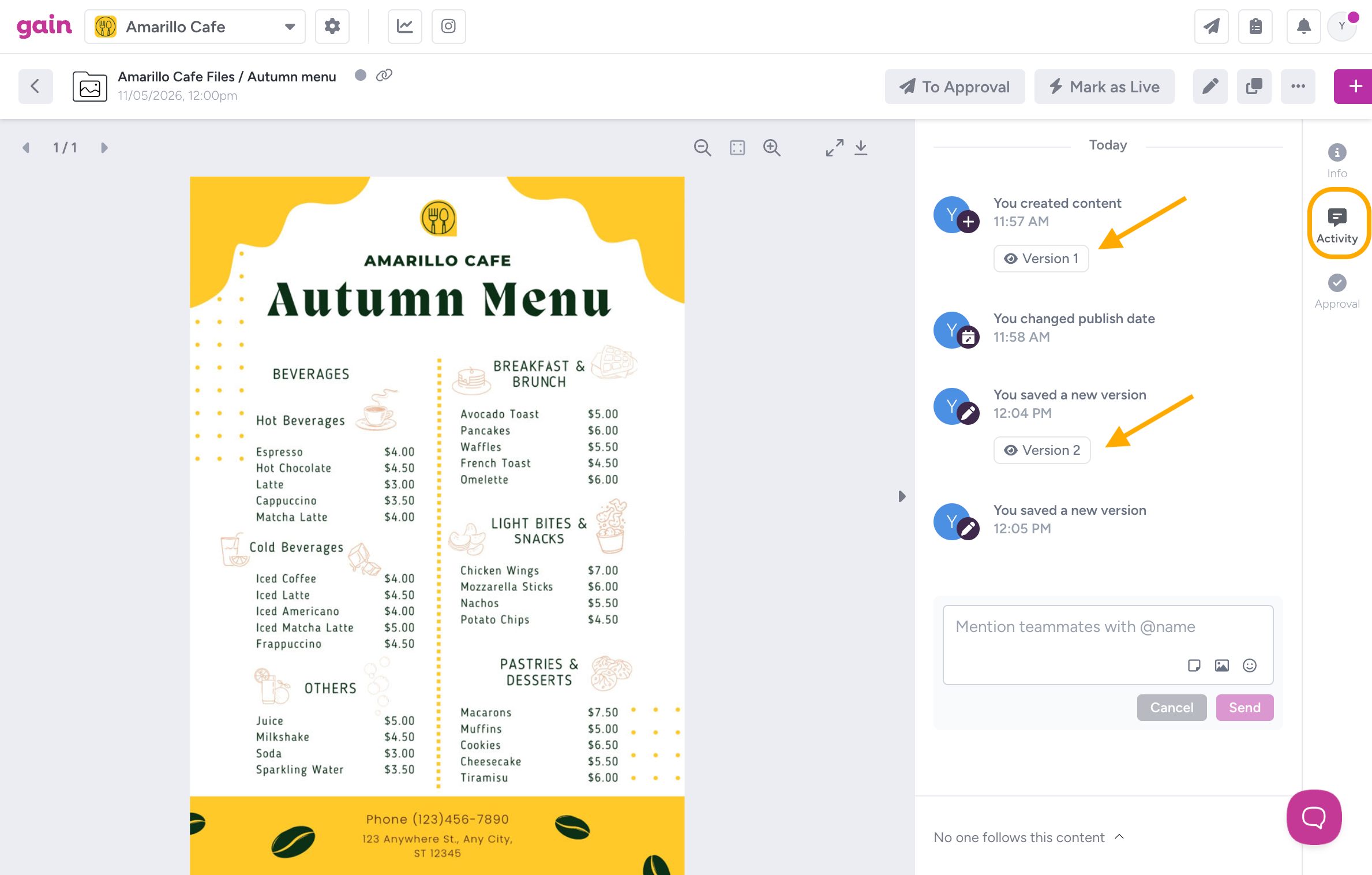
You can find your versions in the Activity tab of the content item. Each activity where a creative was uploaded shows a button for that creative, such as Version 1 on the entry where the content was created. Versions are numbered in the order they were uploaded.
View a previous version
You can look at any earlier version without changing the content item.
- Open the content item and select the Activity tab on the right.
- Find the activity where the creative was uploaded and click its Version button (for example: Version 1.)
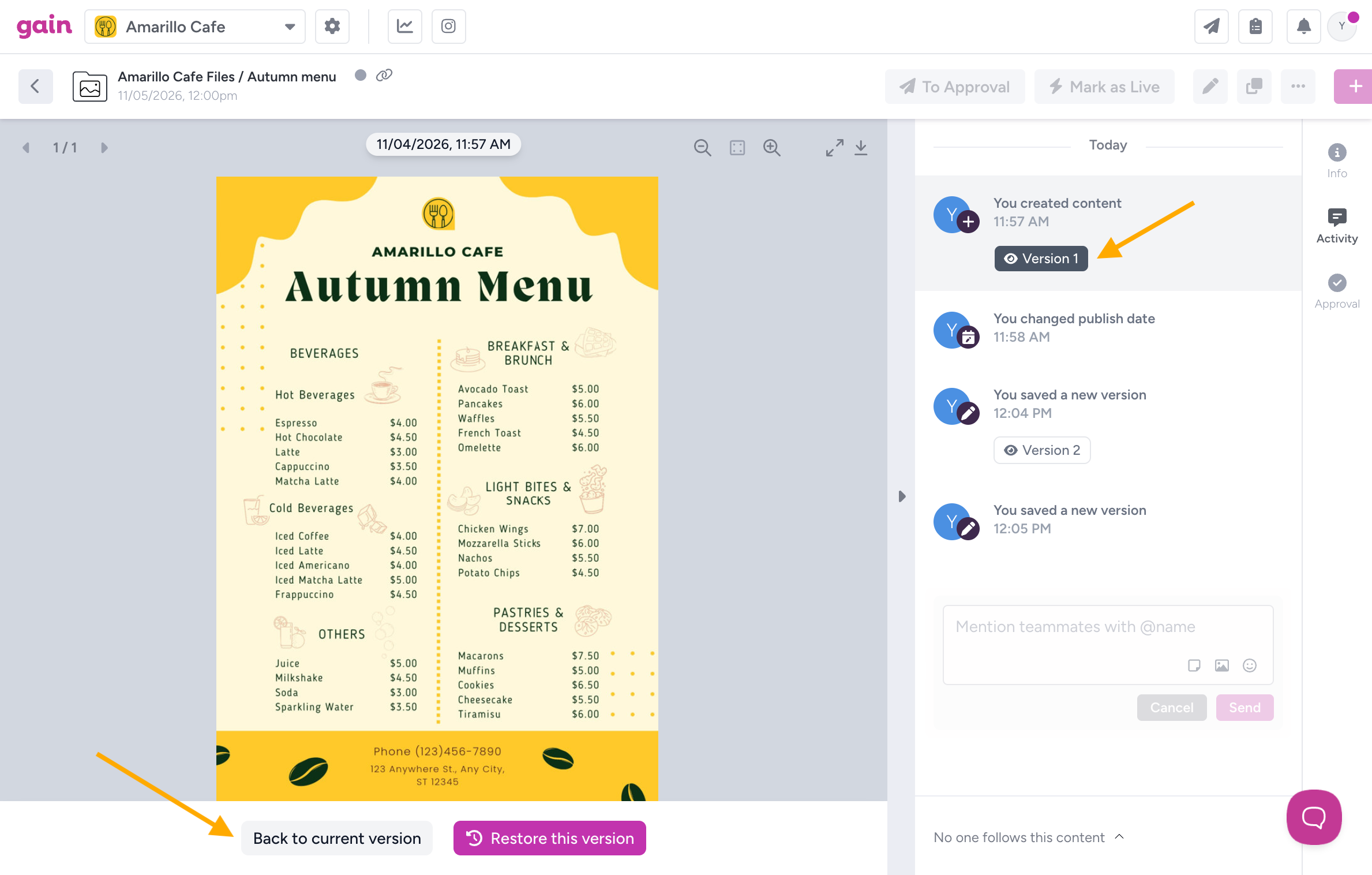
- The previous version appears in the viewer. The date and time it was first uploaded to Gain is shown at the top.
- When you are done looking, click Back to current version in the bar at the bottom.
Restore a previous version
Restoring replaces the current creative with the version you choose. Nothing is lost: the creative you replace is saved as its own version, so you can switch back at any time.
- Open the version you want to bring back, following the steps above.
- Click Restore this version in the bar at the bottom.
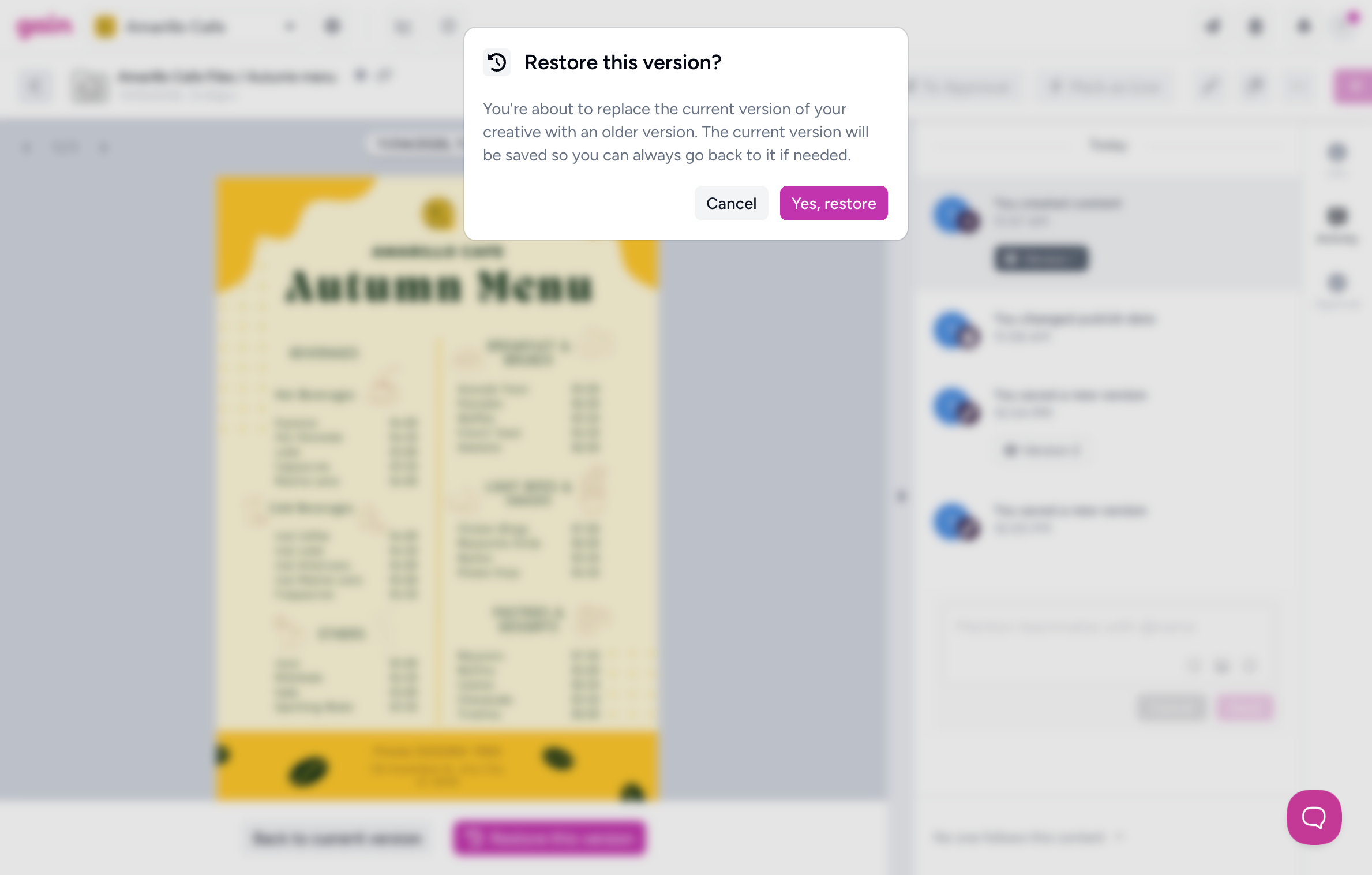
- Click Yes, restore to confirm.
- The restored version replaces the current creative.
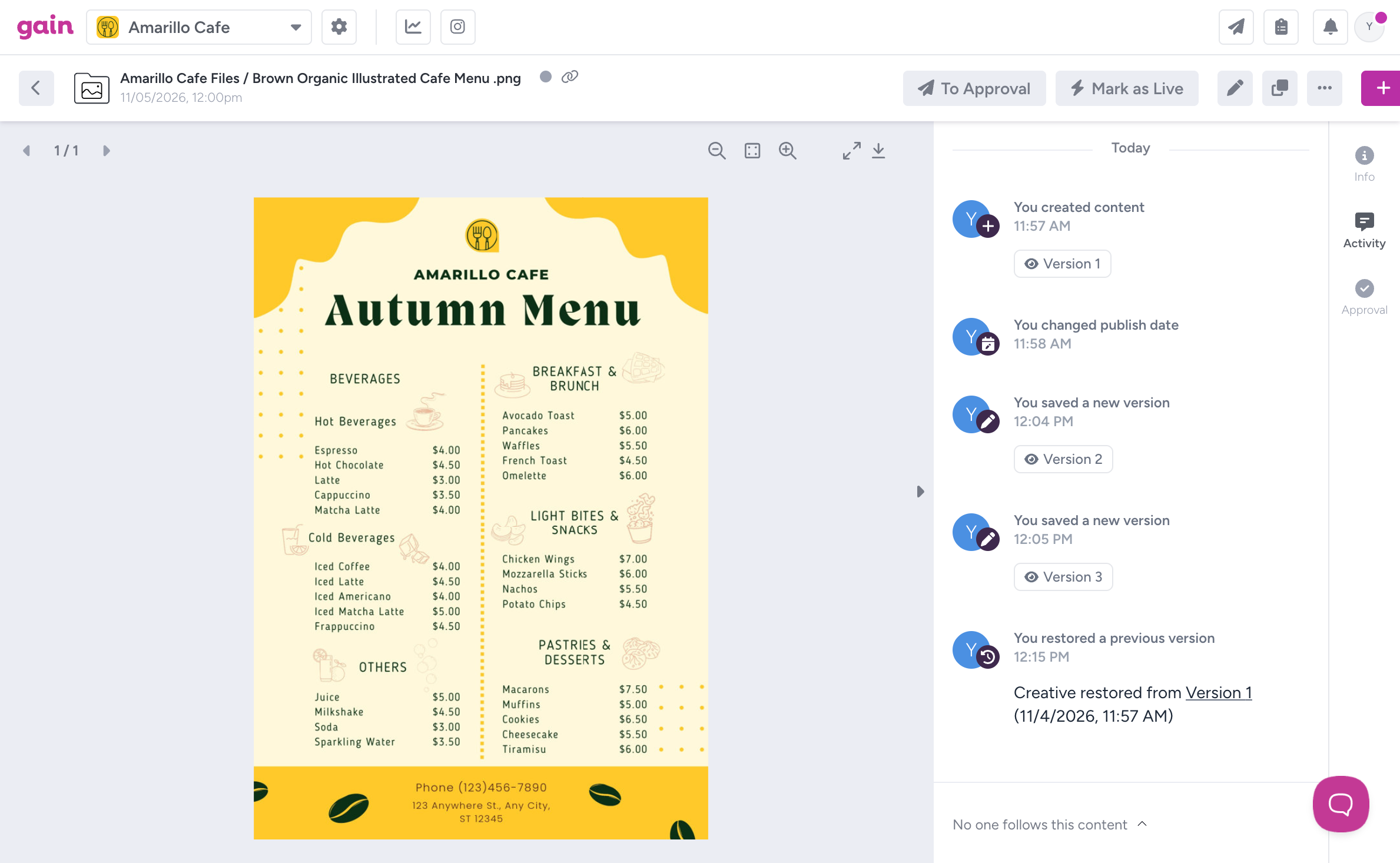
Gain records every restore in the Activity tab. The entry reads "restored a previous version" and shows which version was used and when it was originally uploaded, for example: Creative restored from Version 1 (1/30/2026, 9:31 am). Click the version name in that entry to open it again.
FAQs
Who can restore a previous version?
All Team Members can view and restore previous versions.
Can Clients or stakeholders see previous versions?
No. Clients or stakeholders only see the version that was sent to them for approval. If a Team Member restores a previous version, that's the version they see.
Is there a limit to how many versions are saved?
No. Gain keeps every version.
Does version history work for web pages added with Embed?
No. Embed shows the live page at its URL, so there's no saved creative to go back to. Reviewers always see the latest version of the page.
What happens to annotations and comments when I go back to a previous version?
Annotations are available on files. On a file, they stay attached to the version they were made on. They also still appear in the Activity tab, just like comments, as part of the history of the content item.
Does restoring a version change the approval status?
No. Restoring a version does not affect the status of the content item.
Does restoring a version change anything else on the content item?
Restoring replaces what’s in the Creative section. On files, that’s the file. On social posts, it’s the media, the caption, and the first comment on networks that offer one, such as Instagram and LinkedIn. Everything else stays exactly as it was: the publish date, publish mode, description, content tags, and folder.
Why can't I upload or restore a version on a scheduled item?
Once a content item is scheduled for publishing, no changes can be made to it, so no new versions can be created. To make a change, send the item back to Draft status. Learn more about statuses in Content Workflow.