
Organize Marketing Assets
You can upload files to Gain and organize them in folders matching however you work: by content or media type, by product, by campaign, by team, and such. You can send these files to your stakeholders for approval and later, you can even use them to create social posts.
Jump ahead
- Uploading files and videos
- File size limits and supported formats
- Managing files in folders
- Using assets to create social posts
- Previewing files from Canva
- Project ideas for folders
Uploading files and videos
There are several ways to upload files to Gain.
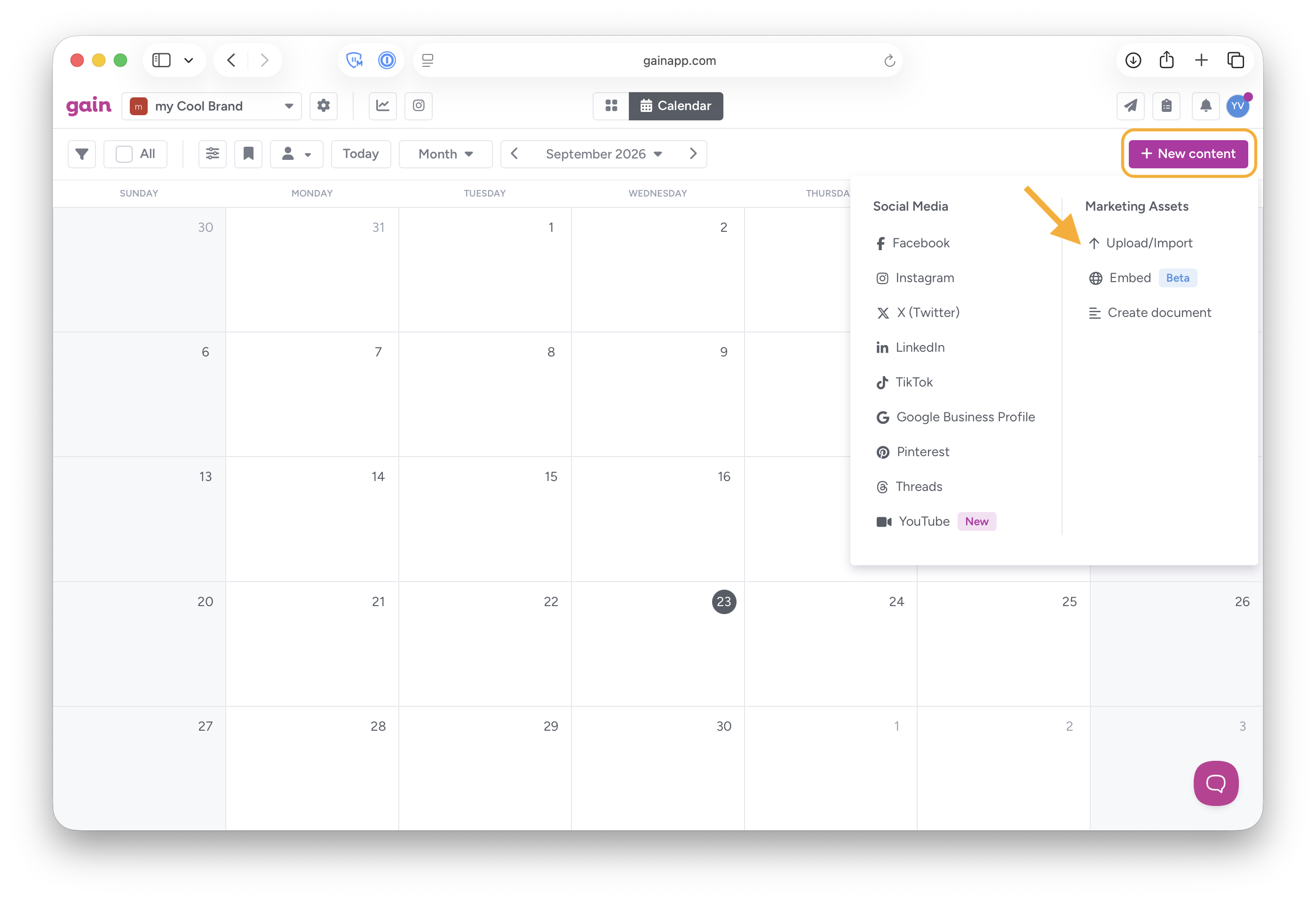
- Click on +New Content, then Upload/Import.
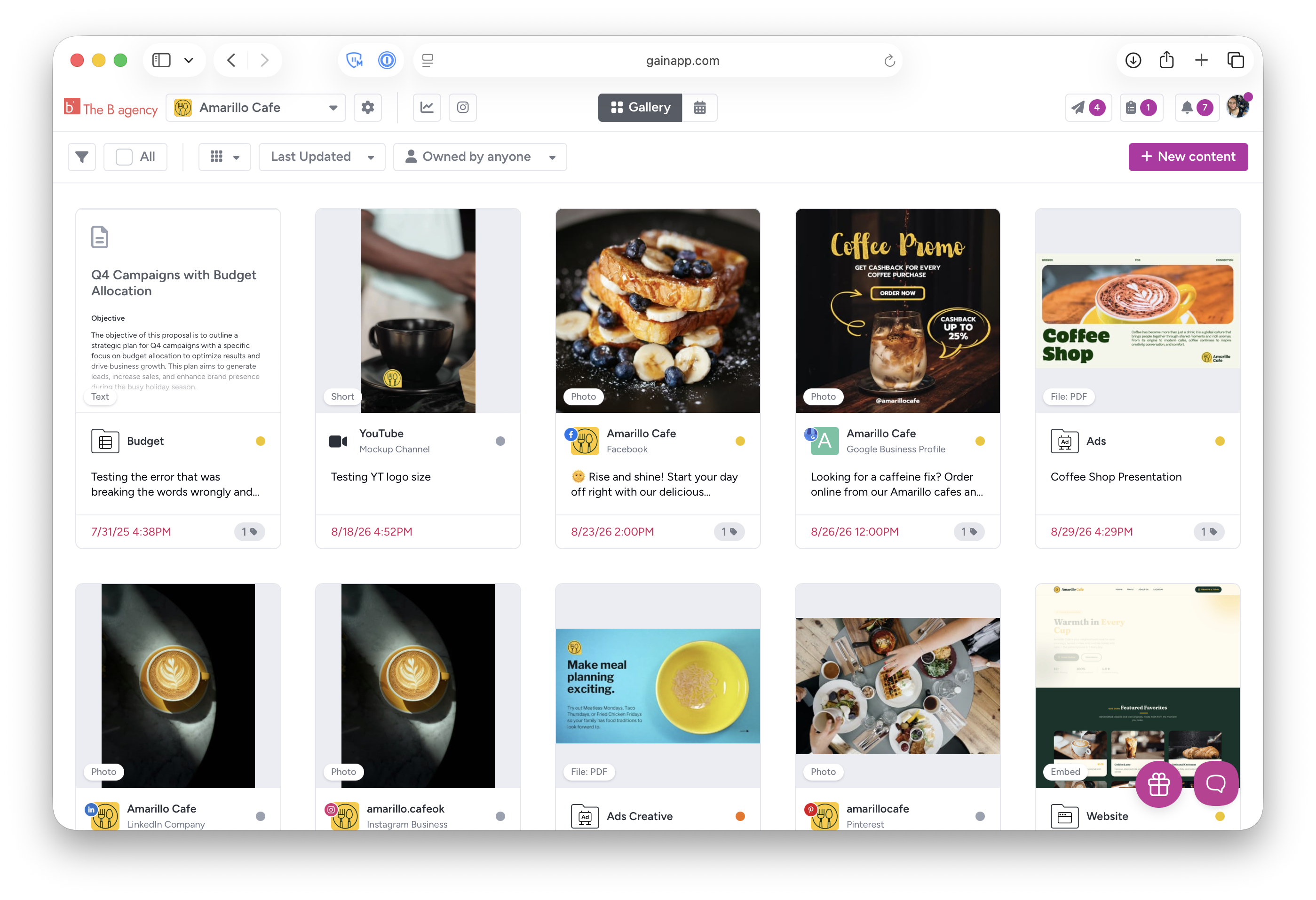
- Drag and drop up to 25 files to the Gallery view. (Bulk upload)
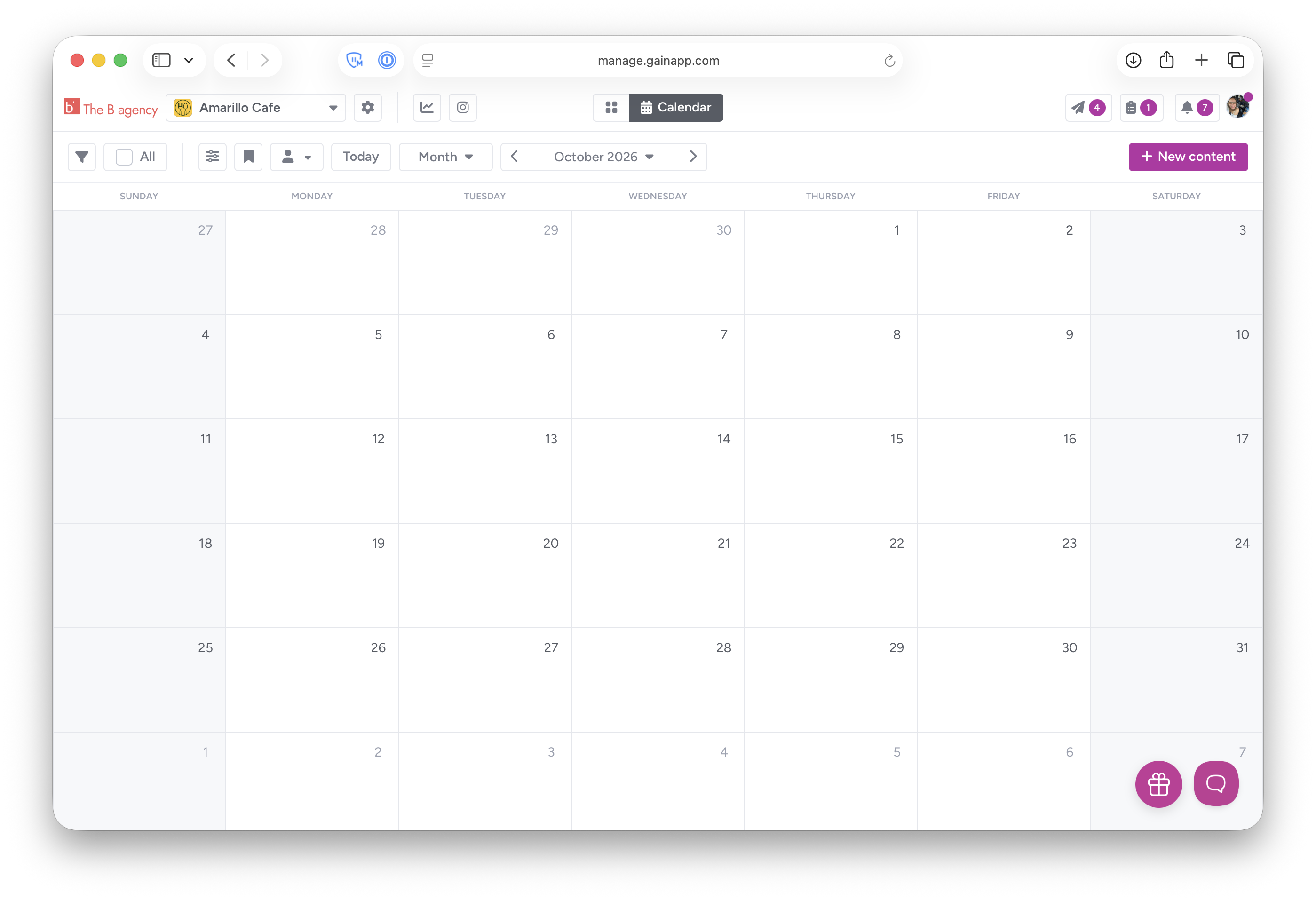
- Drag and drop a file to a specific day in the Calendar view.
Next, you can:
- Choose which folder to save your upload(s) in.
- Add a publish date (Optional. Add a date if you want the file to show up in the Calendar view.)
- Write a description that can be seen by other Team Members and Clients or stakeholders.
- Add content tags (Useful to categorize and filter content in Gain.)
- Rename your files with a numerical order (For example: Special Sale 01, Special Sale 02, Special Sale 03, etc...)

File size limits and supported formats
Images:
Maximum file size: 150MB
- JPG, PNG, TIFF, GIF
Videos:
Maximum file size: 5GB
- MPEG-4 (MP4, M4V)
- MPEG-2 (M2TS, TOD, MTS)
- MPEG (MPE, MPEG, MPG, TS, MOD)
- Quicktime (MOV, QT)
- AVI Video (AVI)
- Windows Media (WMV, ASF)
- Flash Video (FLV)
- 3G Mobile Video (3GP, 3G2, 3GPP)
- Digital Video (DV)
- DVD File (VOB)
- DivX, Xvid (DIVX)
Adobe Creative Suite:
Maximum file size: 150MB
- Adobe Photoshop (PSD)
- Adobe Illustrator (AI)
Documents:
Maximum file size: 150MB
- PDF Document (PDF)
- Powerpoint Presentation (PPT, PPTX)
- Word Document (DOC, DOCX)
- Excel Spreadsheet (XLS, XLSX)
- Plain Text Document (TXT)
- HTML Document (HTML)
- Open Document Presentation (ODP)
- Open Document Text (ODT)
Managing files and folders
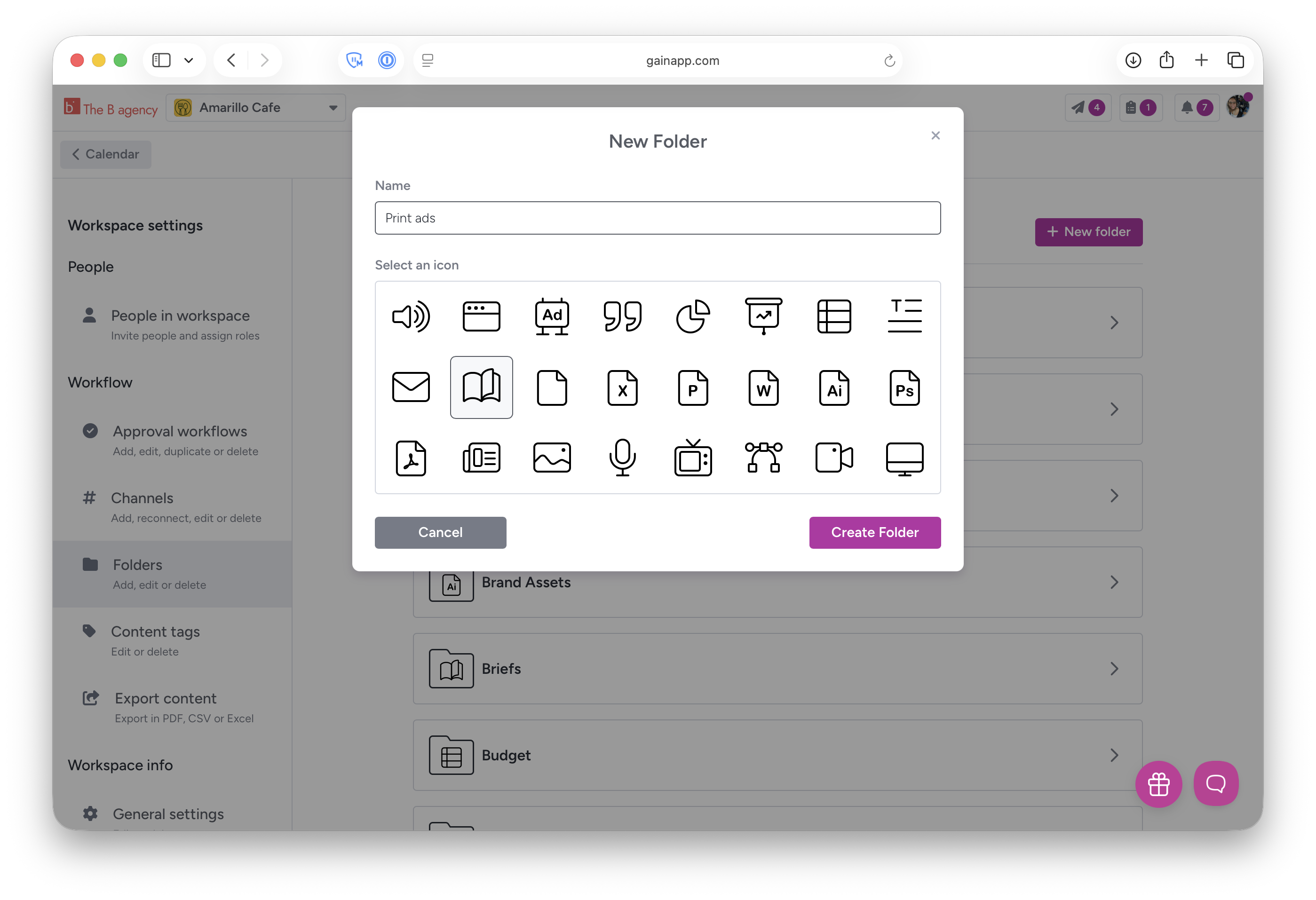
Account Owners and Admins can create, edit, or delete folders in their Workspace Settings (⚙️) > Folders.
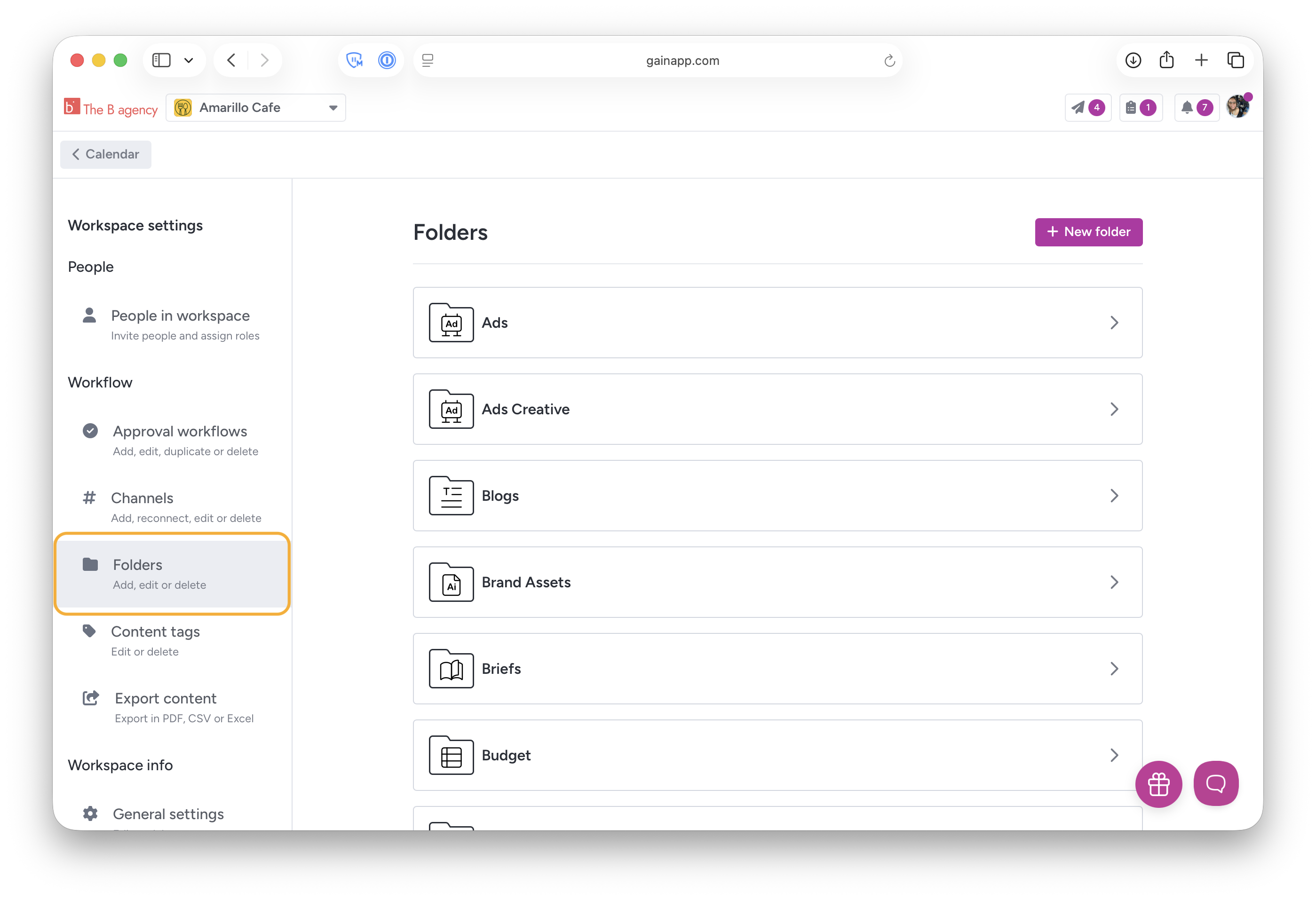
You can assign icons to your folders to help you quickly associate files with their respective folders.
Moving and duplicating files
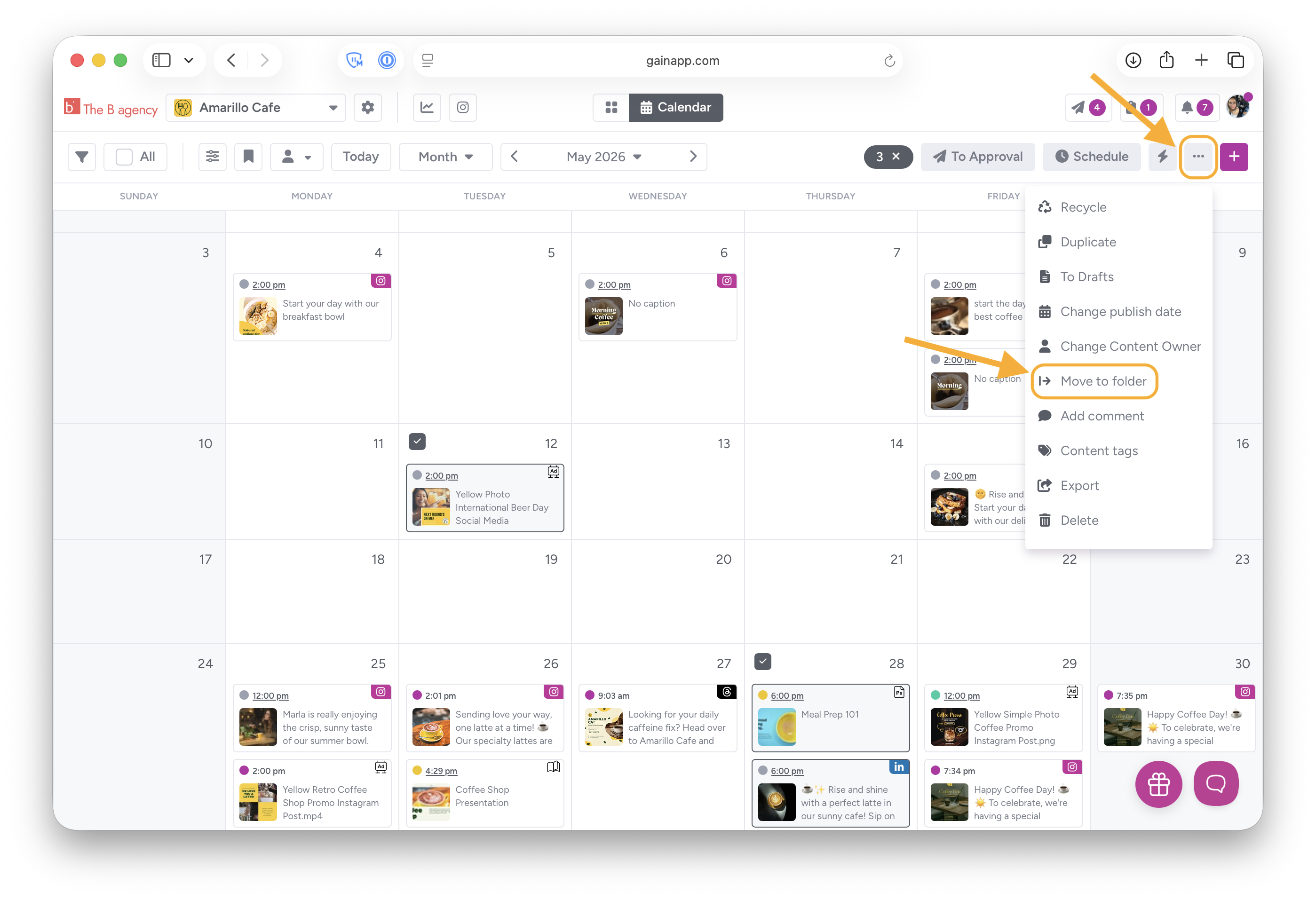
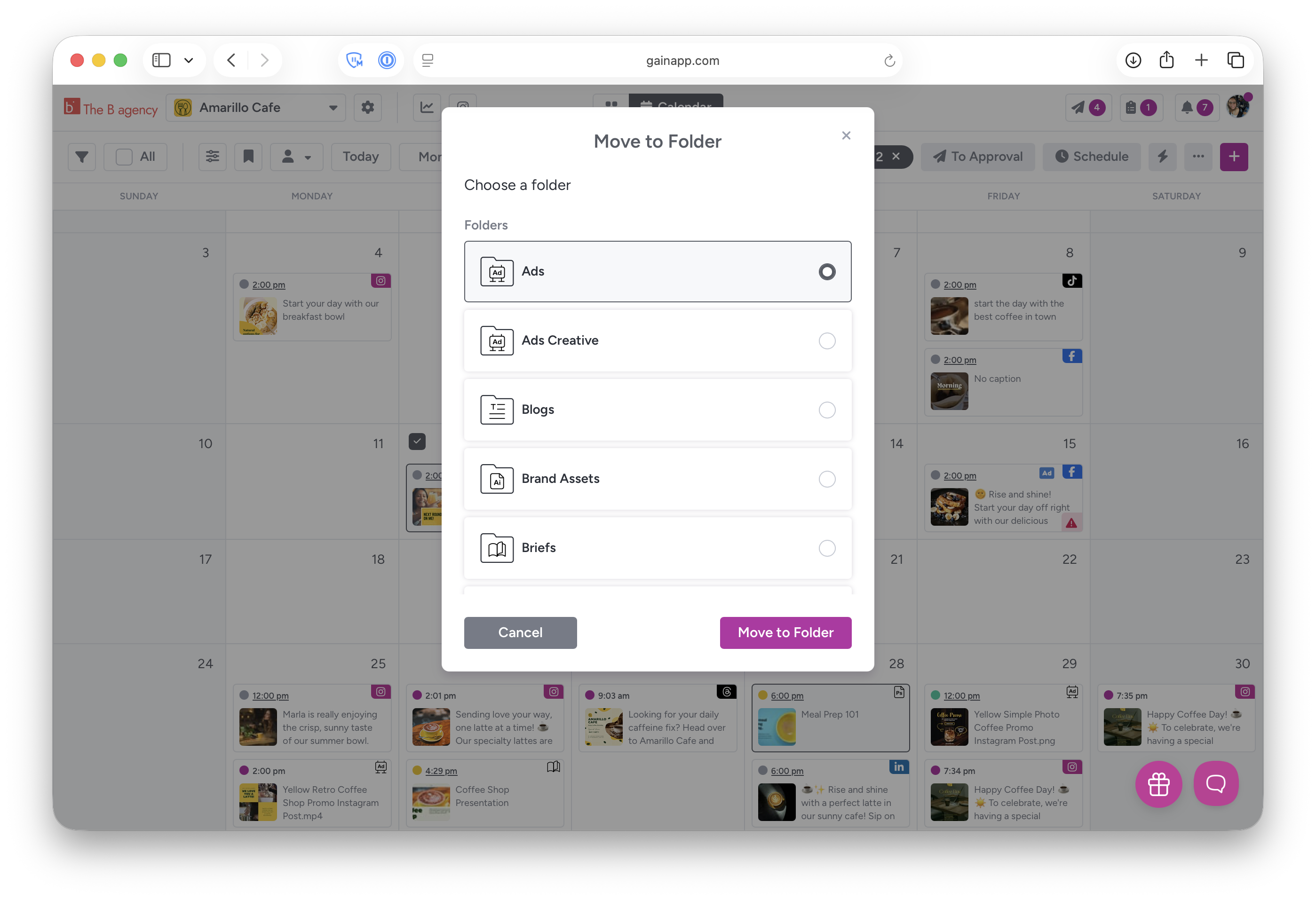
- Moving a file to a different folder: Either in Gallery or Calendar view, click to select one or more files. Click on the ellipsis (...) at the top right to open the menu and click Move to folder. Then choose which folder you want to move your file to.
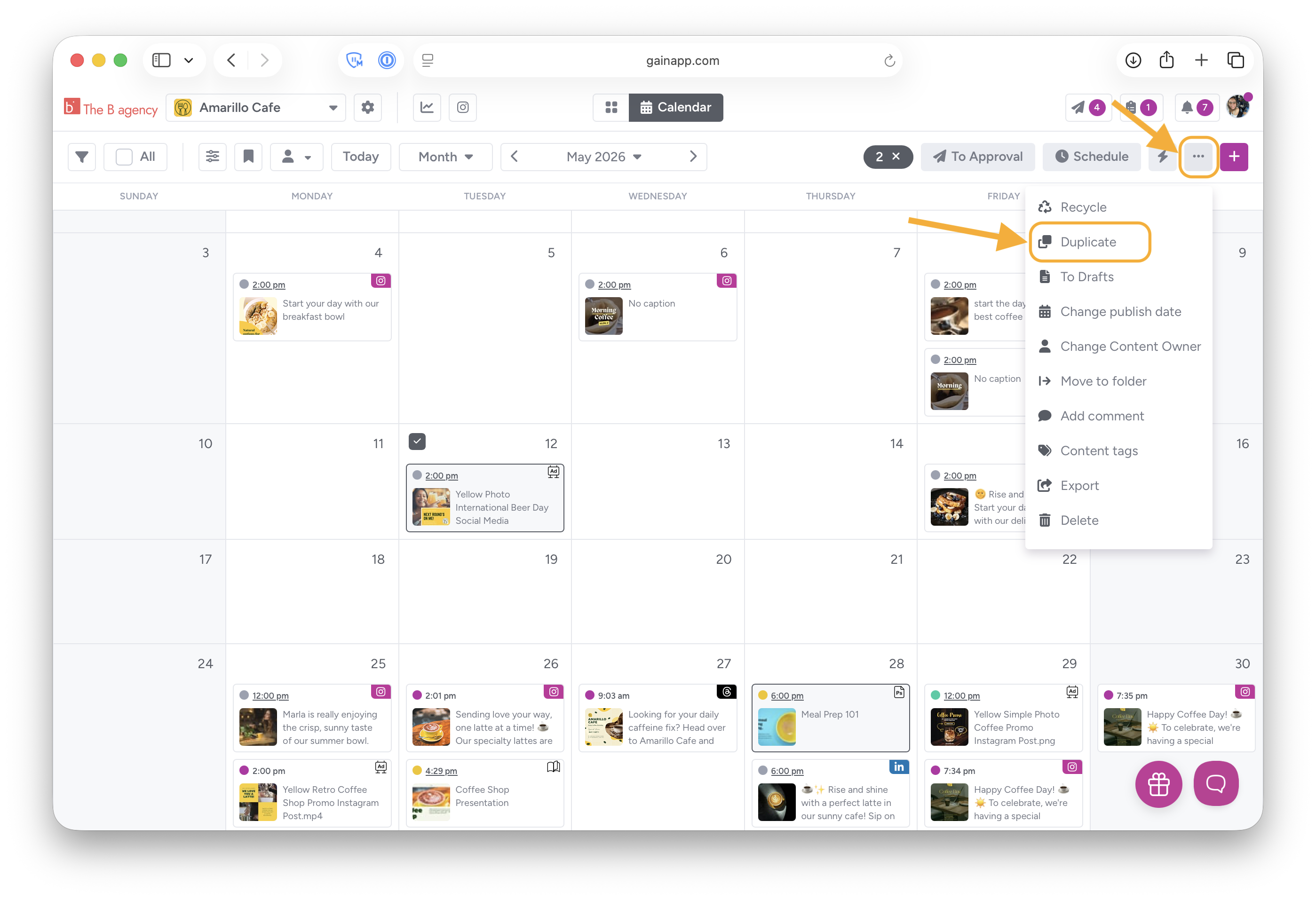
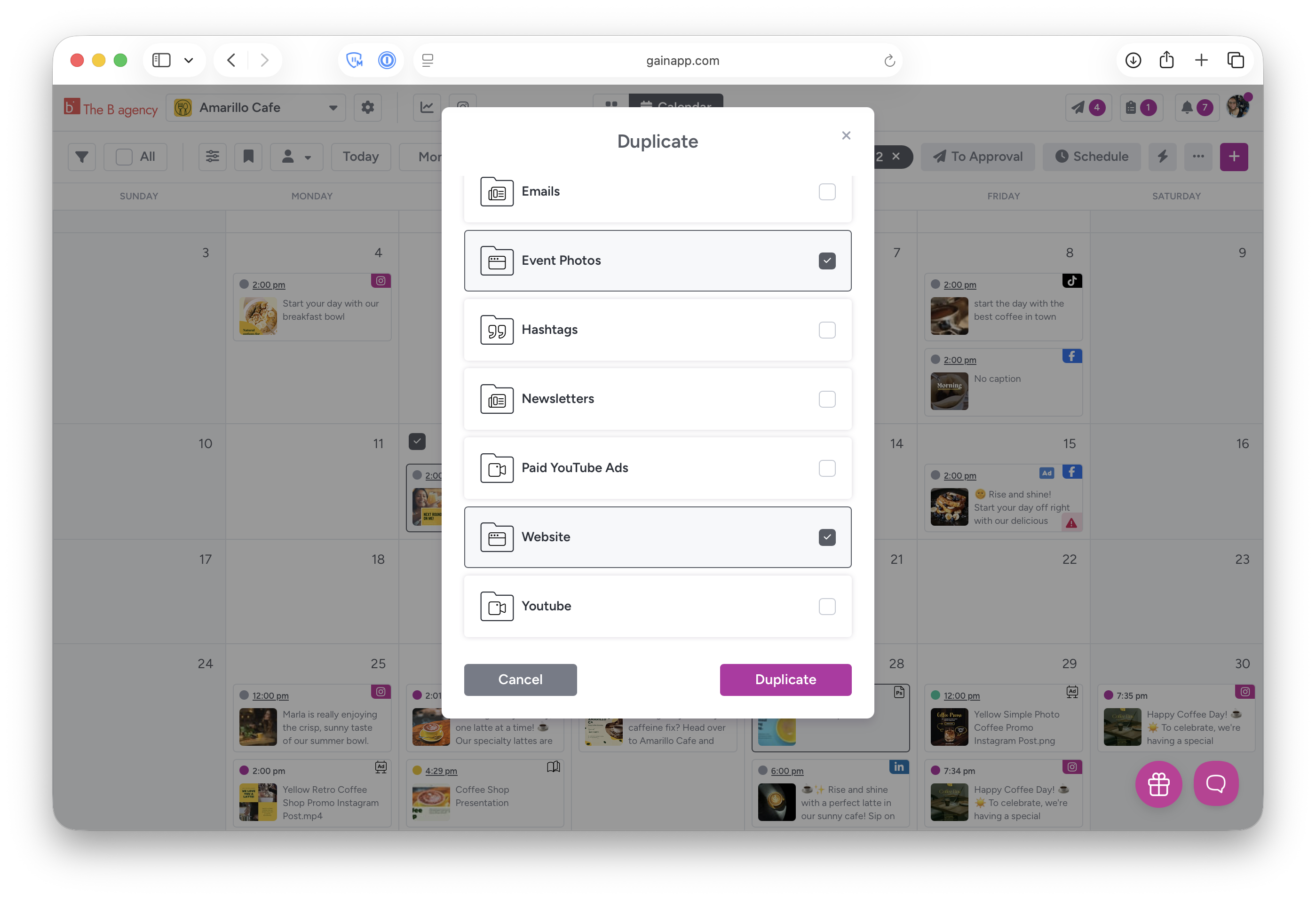
- Duplicating a file: You can duplicate files to different folders (even folders in different workspaces). Click the ellipsis (...) on the top right to open the menu and choose Duplicate. You can duplicate to more than one folder too.
Marking a file as Live
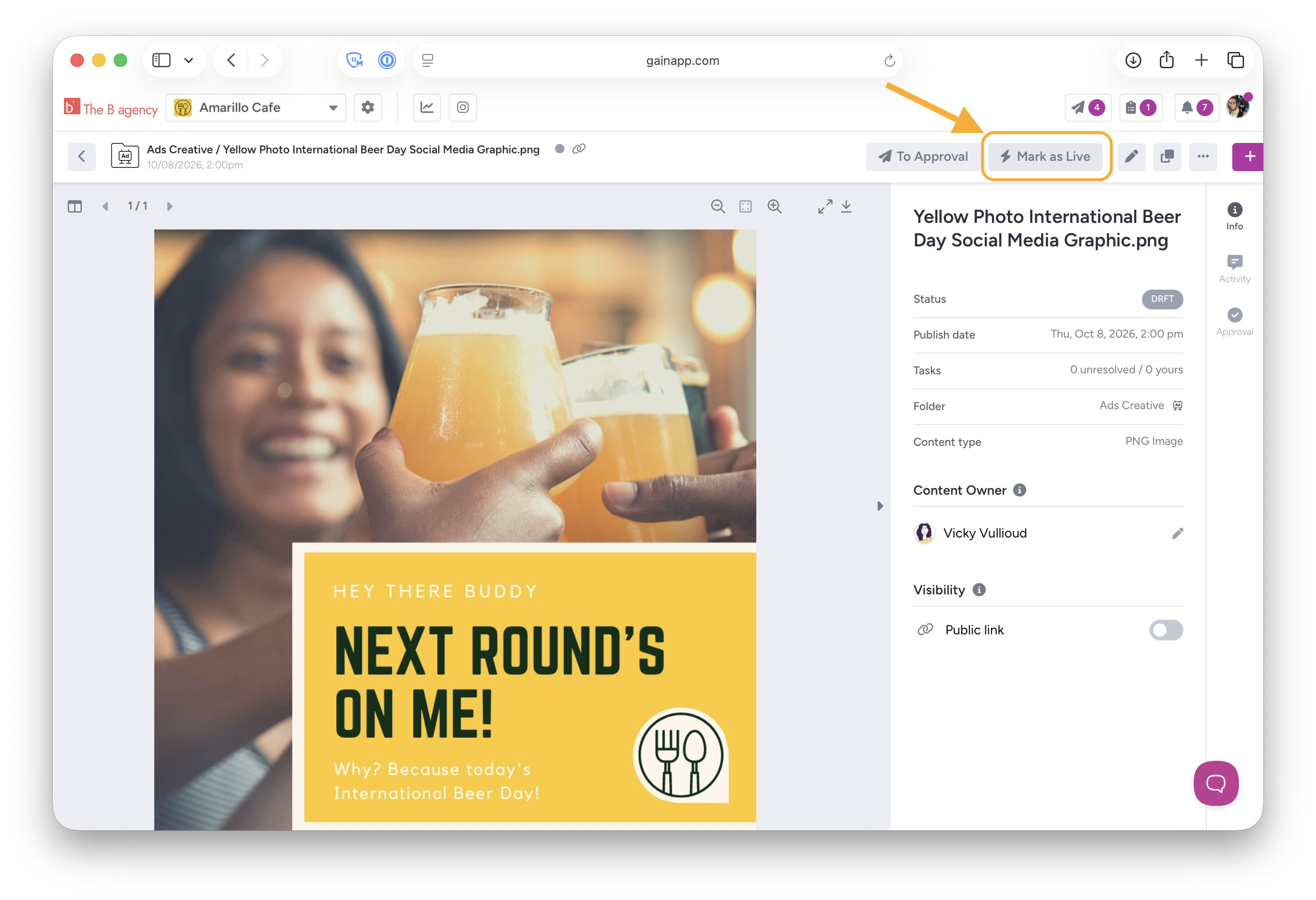
Once your file has been approved by your Client(s) or stakeholder(s) and routed wherever it needs to go, you can change its status to Live to prevent further edits. This feature is helpful for time-sensitive content like newsletters or finalized presentations. While Live content can't be edited, you can still add comments, move it to a different folder, and duplicate it.
Preview files from Canva
You can bring your Canva designs into Gain and organize them in folders. Bring assets like event posters and blog posts and plan their rollout on the Calendar, right alongside your social posts.
The approval process becomes a breeze since your stakeholders can quickly review designs for all your files in one place. Learn more about our Canva integration here.
Using assets to create social posts
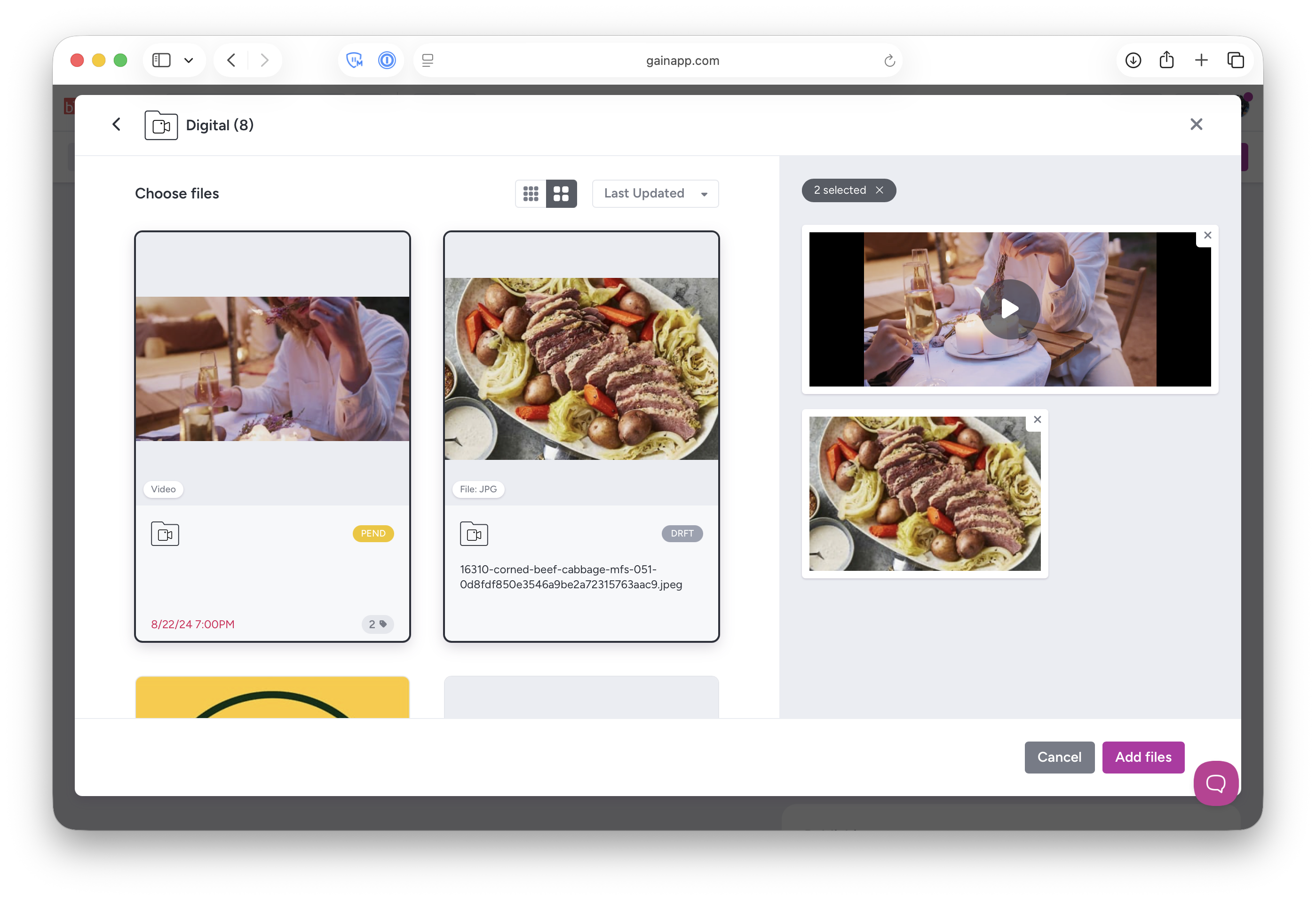
You can use files in your folders to create social posts too. Gain converts your files, such as PDFs, into formats compatible with social networks, like JPEGs, allowing you to use your assets for social posts without the hassle of re-uploading or converting files using external apps.
-
When creating a social post, click Folders.

- Choose the folder containing the files you want to use in the social post.
- Select one or more files and click Add files.

Project ideas for folders
You can organize your folders to match the way you work. Here are some ideas to organize your folders in Gain:
- Digital assets like ads and email newsletters
- Case studies
- Print media (Gain supports Adobe formats (AI, PSD) and you can download them as PDFs from Gain.)
- Campaign briefs
- Brand assets
- Invoices
- Podcast or video scripts
- Email campaigns
- Website content
- Approved photos and videos (Team Members can pull assets from folders with files that have been approved by your Clients or stakeholders.)
- Presentations (Gain supports slide show formats like Power Point.)
- Agreements
- Press Releases
The sky's the limit.