
User Roles and Permissions
Gain was designed for agencies and marketing teams who send content to multiple clients and stakeholders for approval. Here's a comprehensive overview of user roles in Gain.
Jump ahead
- Roles and permissions overview
- Managing people in your account
- Inviting Team Members and Clients
- Optional for Clients: Connecting Social Accounts to Gain
- Transfer ownership of the account
Roles and permissions overview
Team Members
The people in your team who create, collaborate, manage and publish content to the social network are Team Members in Gain. These are typically social media strategists, account managers, creatives, and internal stakeholders.
| Role | Permissions |
|---|---|
| Contributors |
They can:
They cannot schedule or publish social posts. This is a role you can give to freelancers or consultants. |
| Publishers |
They can do everything a Contributor can do, plus schedule and publish social posts.
|
| Workspace Admins |
They can do everything a Publisher can do, plus connect social channels and manage the workspaces to which they've been granted permission.
|
| Account Admins |
They can do everything a Workspace Admin can do, in all workspaces in the account.
|
| Account Owners |
They can do everything an Account Admin can do, plus add and remove users from the account and manage billing.
|
Clients
This is the role you will give to the your external stakeholders to gather their feedback and approvals.
| Role | Permission |
|---|---|
| Clients |
They can:
|
Managing people in your account
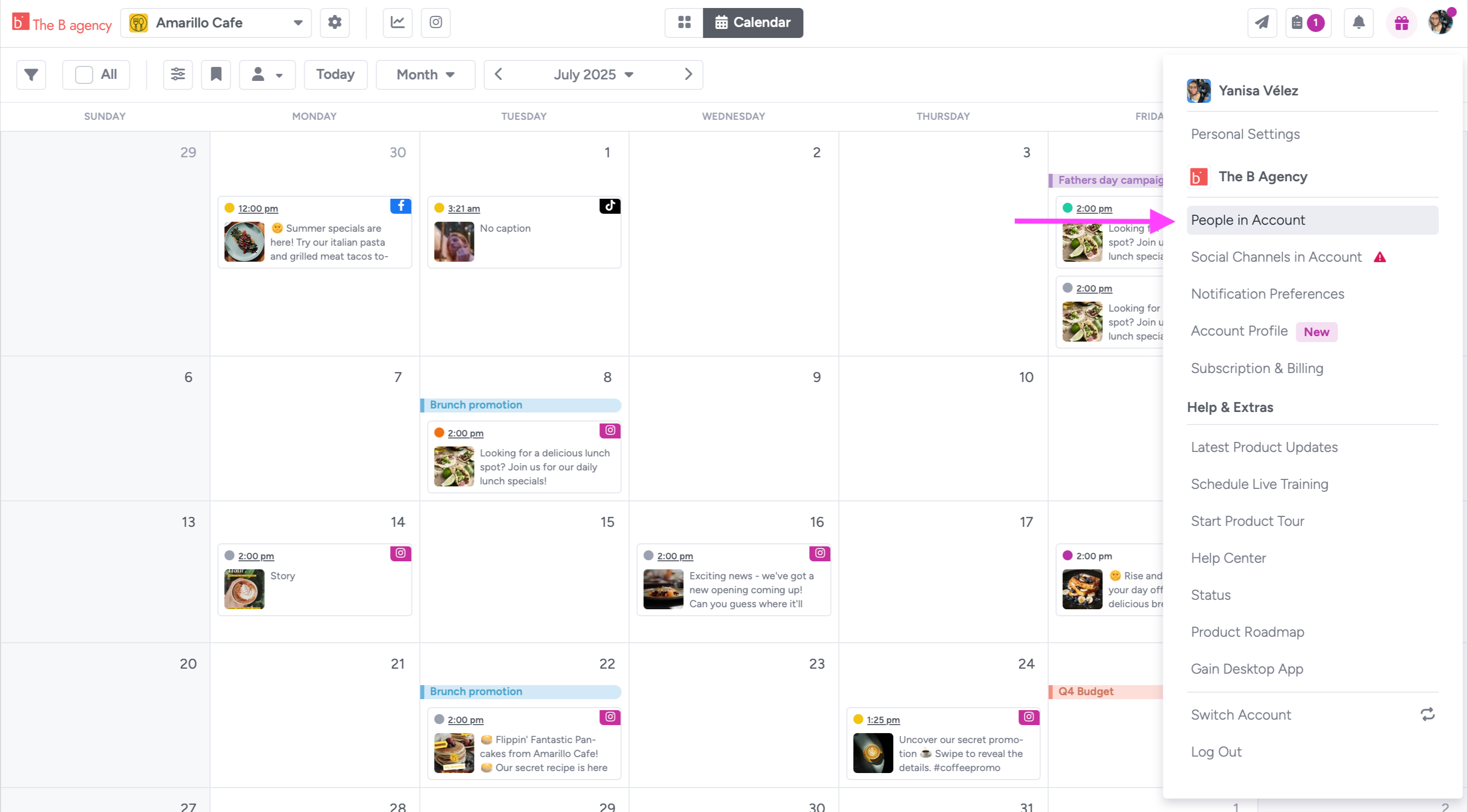
From your Personal Settings menu, choose People in Account.
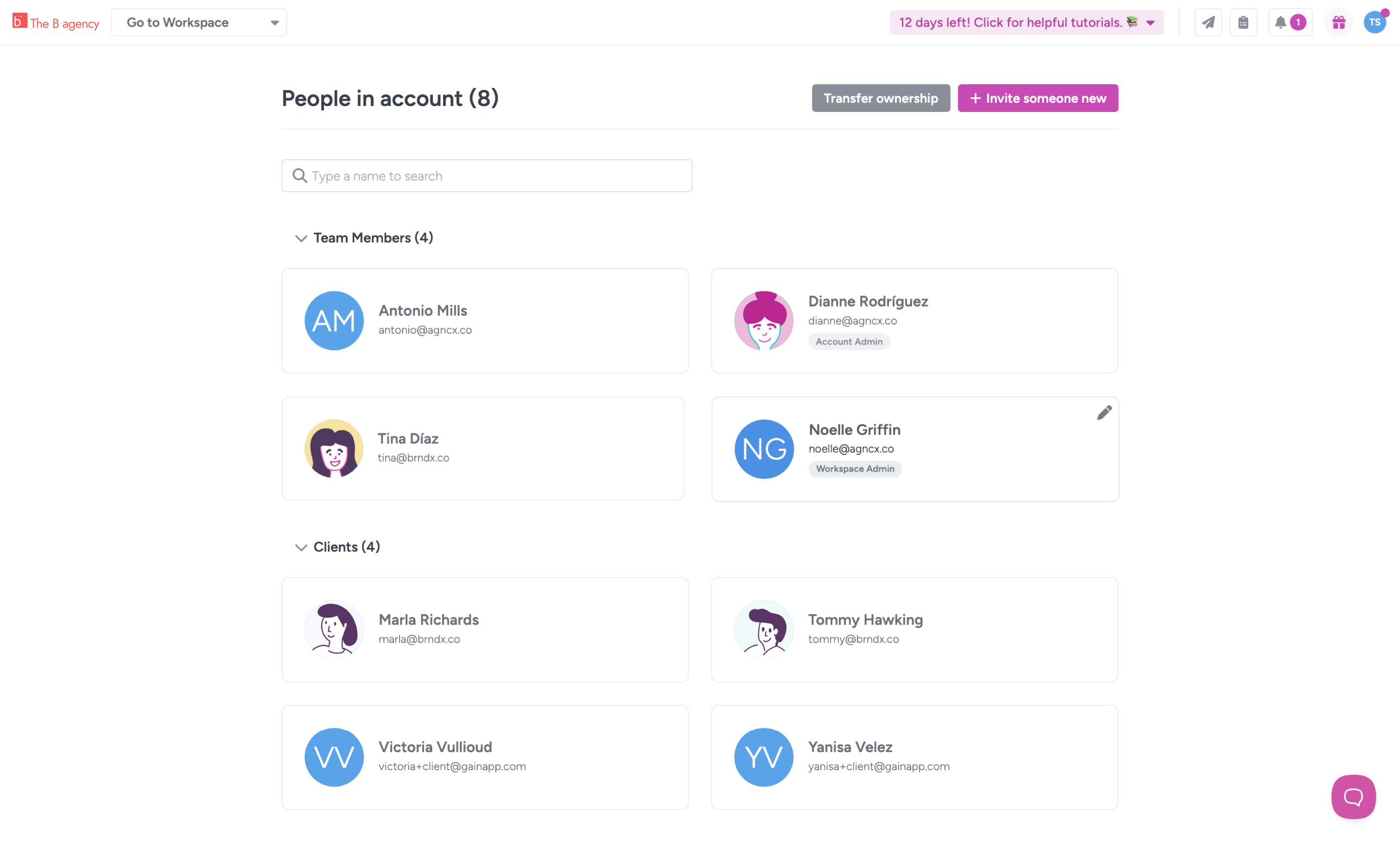
From the People in Account page, you can add or remove users, assign and change user roles, and transfer ownership of the account.
Inviting Team Members and Clients
In the People in Account page:
- Click on + Invite someone new
- Add the person's name and email address
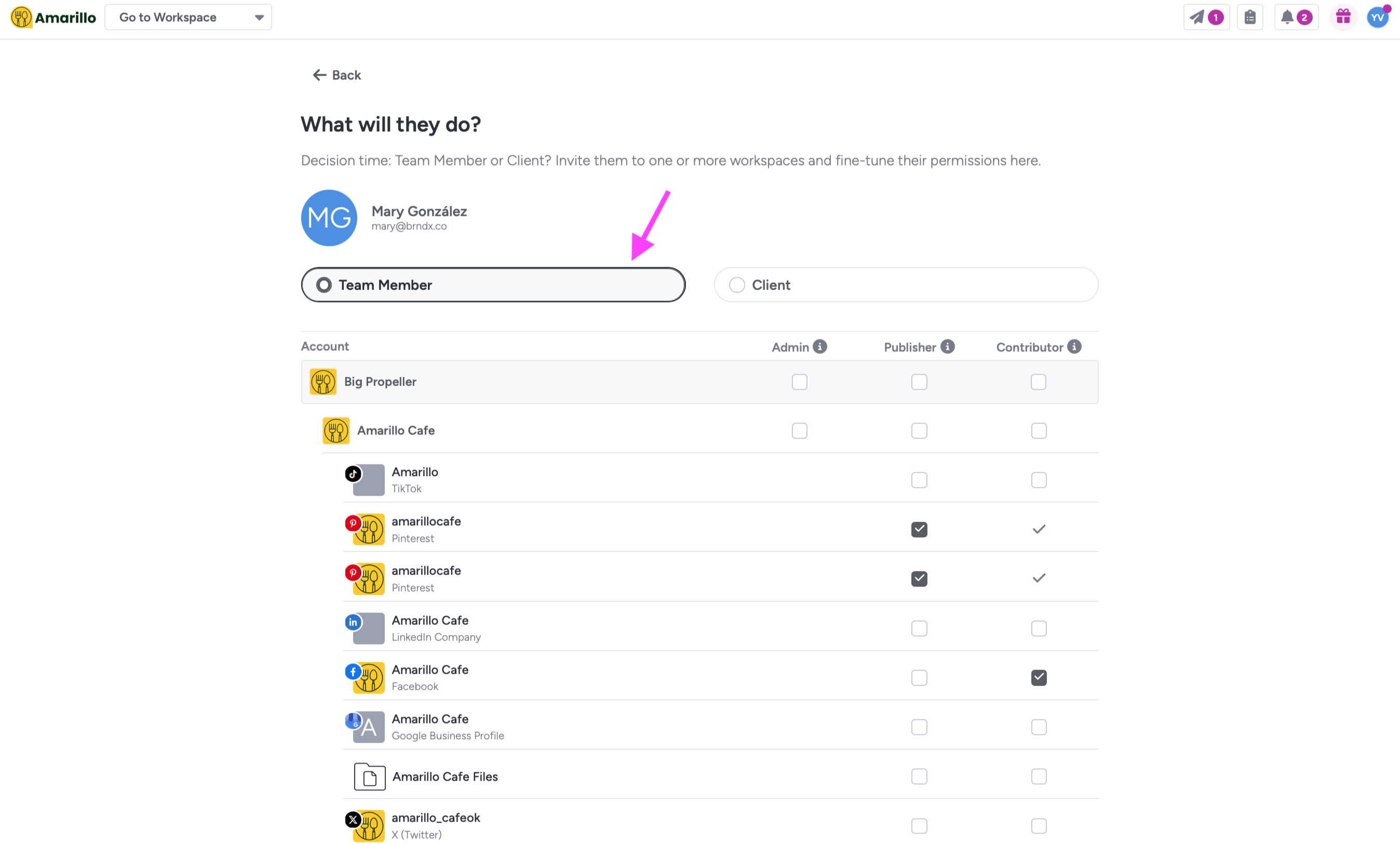
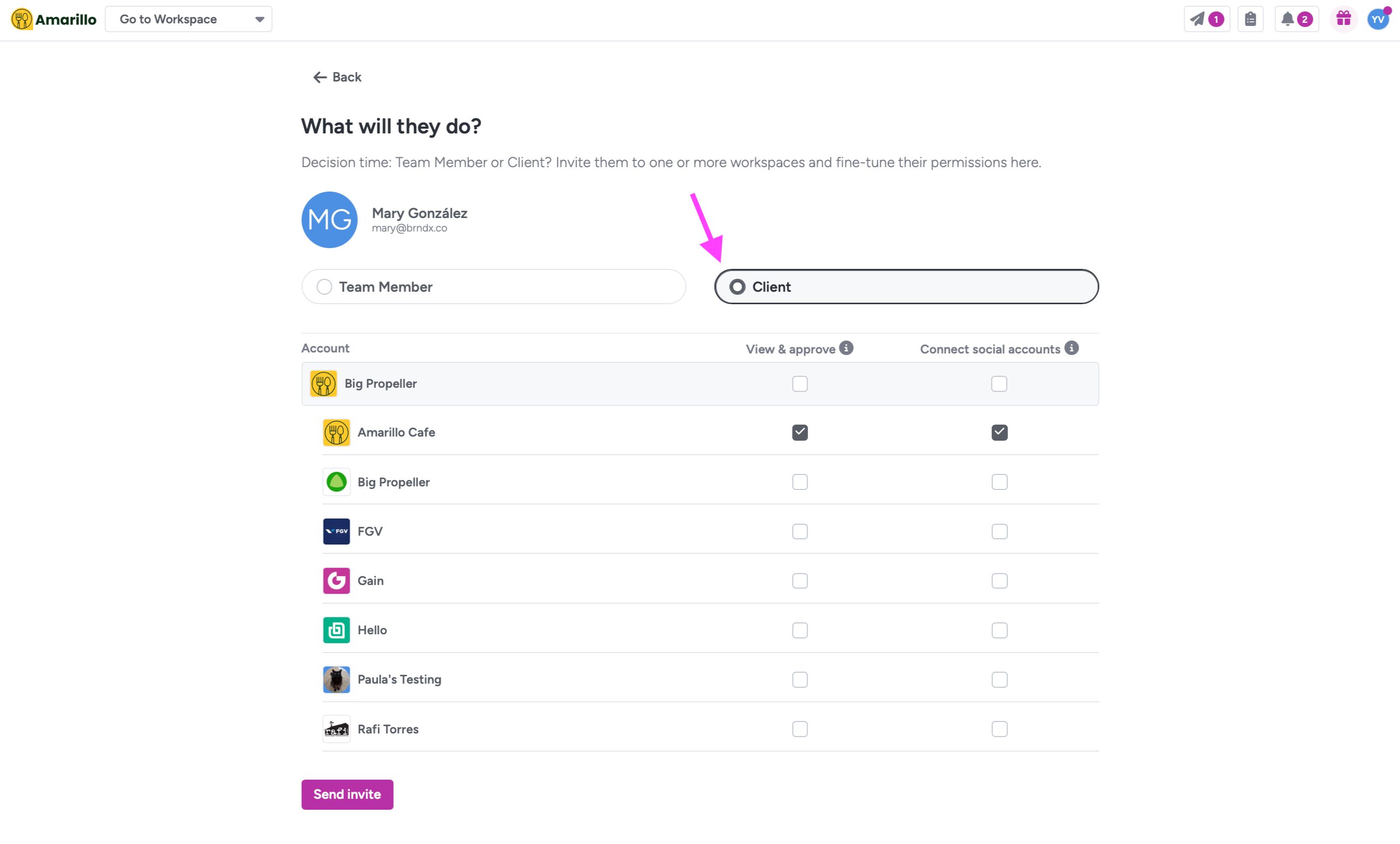
- Choose their role by clicking on either Team Member (Contributor, Publisher, Admin) or Client. You can assign their role at the account level if you want to give them access to all the workspaces in the account, or by workspace, only for the workspace(s) you want them to have access to.
- Click on Send invite at the bottom of the page
You can come back to this page to change their role and edit their permissions anytime.
Optional for Clients: Connecting social accounts to Gain
When setting a Client's permissions in People in Account, you can choose to allow your Clients to connect social accounts to Gain. Just check the appropriate box next to account or workspace(s) you want them to be able to connect social accounts to.
You can turn this permission on or off whenever you want.
Your Client will receive an email notification and they'll have a new Workspace settings (⚙️) section in their calendar, where they'll be able to connect and reconnect social channels.
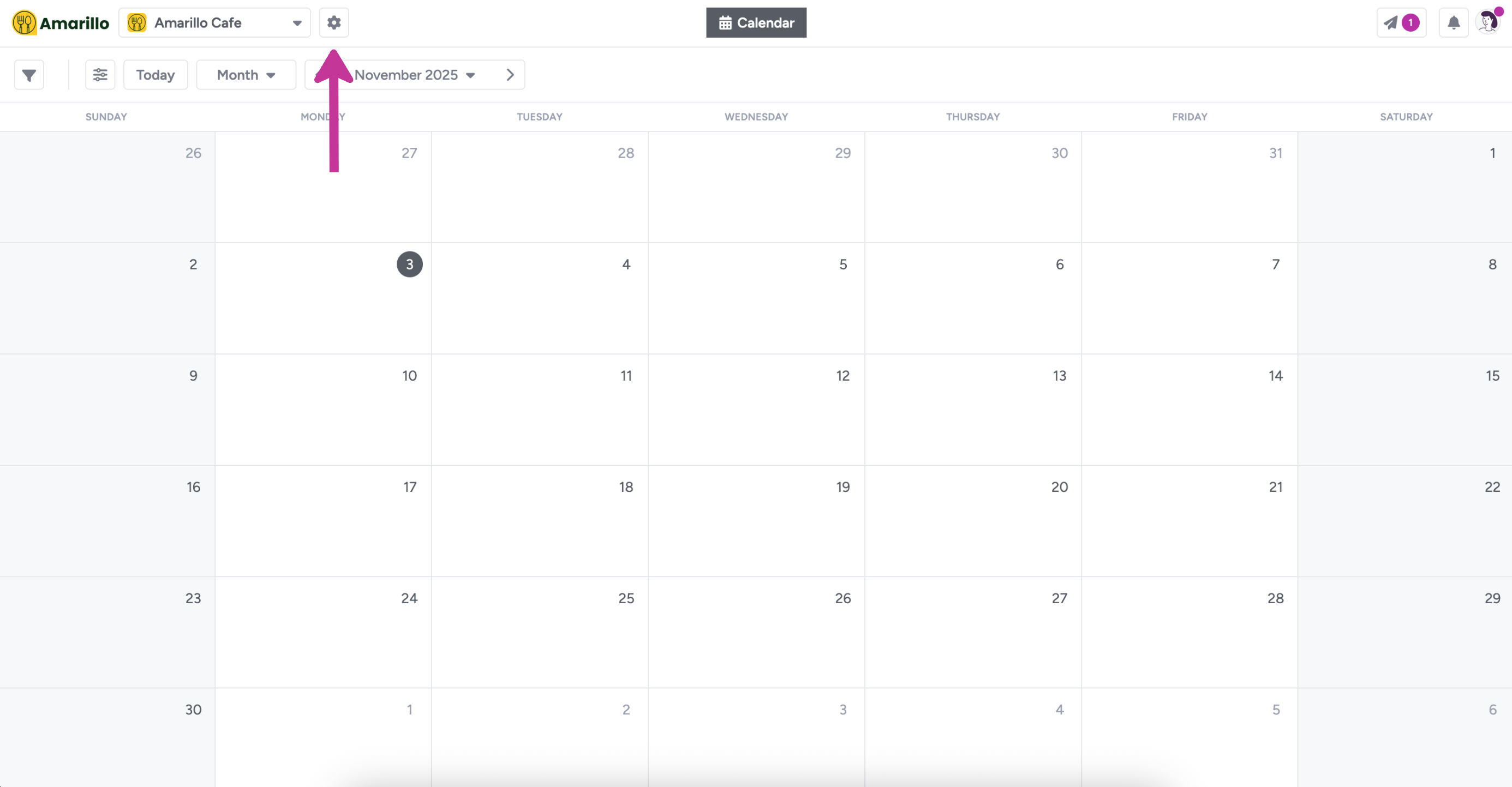
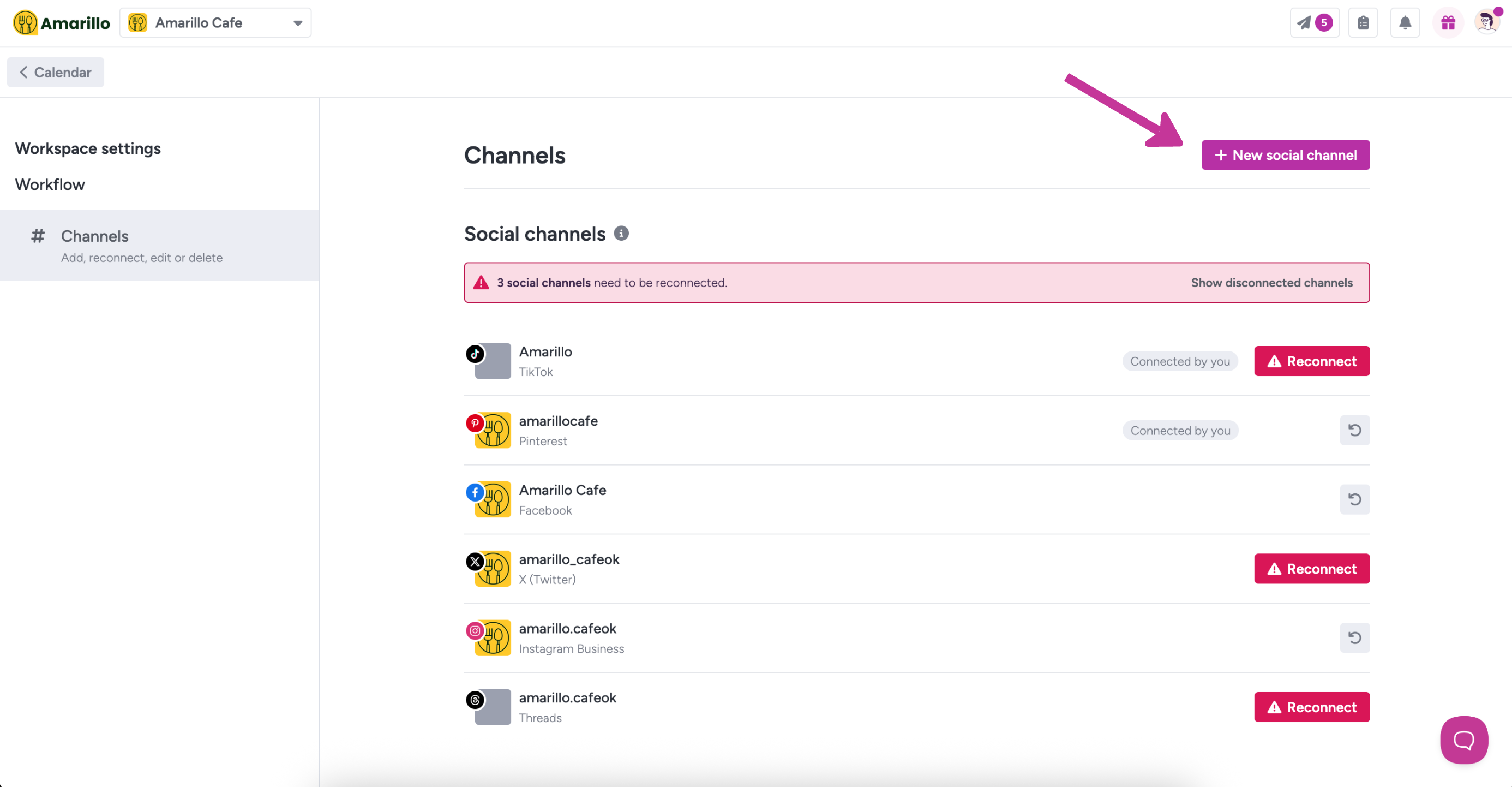
👉🏼 Share this guide with your Clients to connect their social accounts to Gain
Transferring ownership of the account
Only the account owner can transfer ownership of the account to another user from the People in Account section.
- Click on Transfer ownership
- Select a new account owner
- Enter your Gain password to confirm
- Click Transfer Account Ownership
Important: You will no longer be the account owner after completing the transfer. You will remain as account admin but cannot view or manage billing.